Invite a project participant
Last updated: July 17, 2026
Invite and manage the project team
Use the video controls or chapter buttons to follow this tutorial.
Read transcript
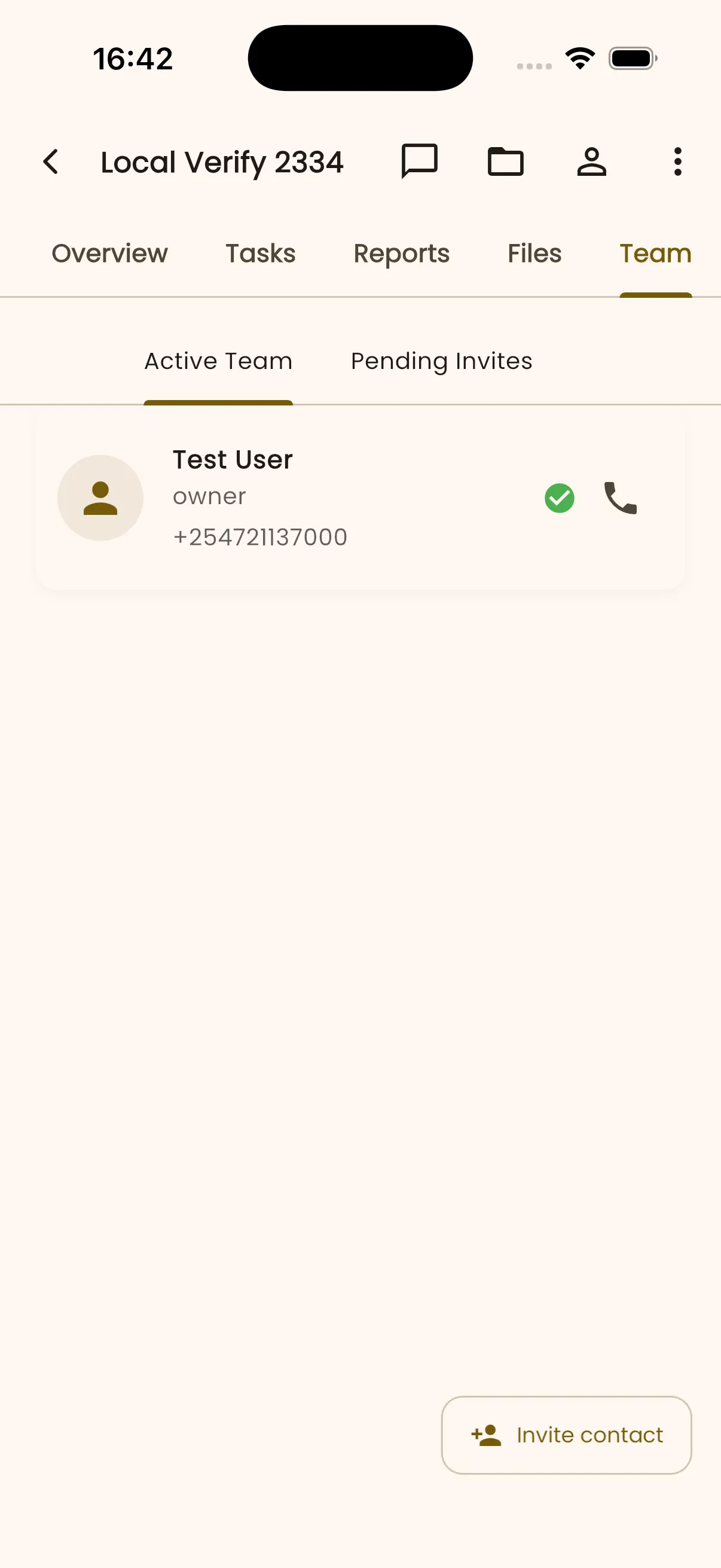
- Open the project Team tab, then select Invite contact to add a participant.
- Enter the synthetic name Site Supervisor.
- Add the synthetic test phone number, and review the participant role before selecting Invite.
- Read the legal confirmation carefully. Continue only when you have the participant's consent.
- InBuildr returns to the Team area after sending the invitation.
- Open Pending Invites. Site Supervisor appears with the status Invited. Active Team and Pending Invites separate current participants from invitations awaiting a response.
Before you begin
Section titled “Before you begin”Sign in, open the project, and have the participant’s name and contact details ready. Confirm that you have the person’s consent before adding them.
Permission note
Section titled “Permission note”You need permission to invite or manage project contacts. Only people with contact-management permission can manage an existing participant; project owners are not managed from that action.
- Open the project Team tab.
- Select Invite contact.
- Enter the participant’s details and choose the available role.
- Submit the invitation, then check Pending Invites to review its status.
Expected result
Section titled “Expected result”The participant is invited to the project. Active members and pending invitations remain separate in the Team tab.
Troubleshooting
Section titled “Troubleshooting”If Invite contact is unavailable, your project role cannot invite participants. If the invitation is not listed, refresh the Team tab and verify the contact details before sending another invite.