Record a daily log
Last updated: July 17, 2026
Create a daily log with an expense and attachment
Use the video controls or chapter buttons to follow this tutorial.
Read transcript
- Create a daily log with an expense and receipt attachment.
- From the project Reports tab, select Add daily log and choose the reporting date.
- Review site conditions, work done today, and the crew before submitting the completed log.
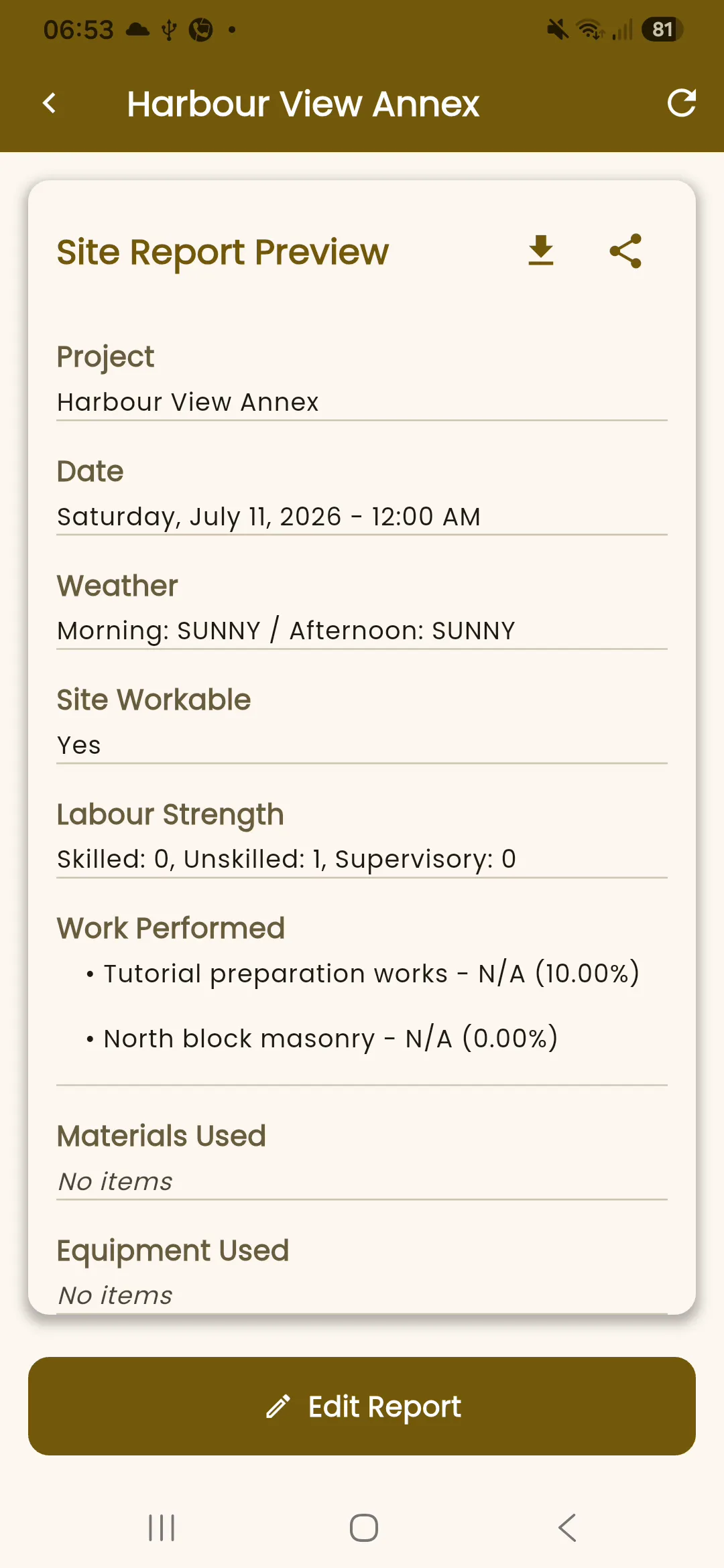
- Choose Clear, mark the site workable, update activity progress, and record the crew on site.
- Submit the ready log, then confirm the saved report shows the recorded conditions, work, and labour.
- Return to the feed, select Add update, and choose Expense.
- Enter a demo receipt description, choose Materials, record the amount, and mark it Paid.
- Attach the tutorial receipt, then return to the form.
- Add the expense. It appears in the project feed.
Before you begin
Section titled “Before you begin”Sign in, open the project, and collect the day’s conditions, work performed, and manpower information. Programme activities can be used for work rows when they are available.
Permission note
Section titled “Permission note”Creating a daily log requires report-create permission for the project.
- Open the project Reports tab or choose Daily log from the shared add activity picker.
- Add the day’s site conditions and work done today.
- Record manpower and complete the optional sections that apply to the site.
- Review the readiness information and submit the log.
Expected result
Section titled “Expected result”The daily log is saved as a project report and is projected into the project feed as a linked activity.
Troubleshooting
Section titled “Troubleshooting”If the daily-log entry point is unavailable, check that you can create project reports. If activity rows are missing, save the log with the information available and confirm the project has programme activities before retrying.