Start using InBuildr
Last updated: July 17, 2026
Get started and navigate InBuildr
Read transcript
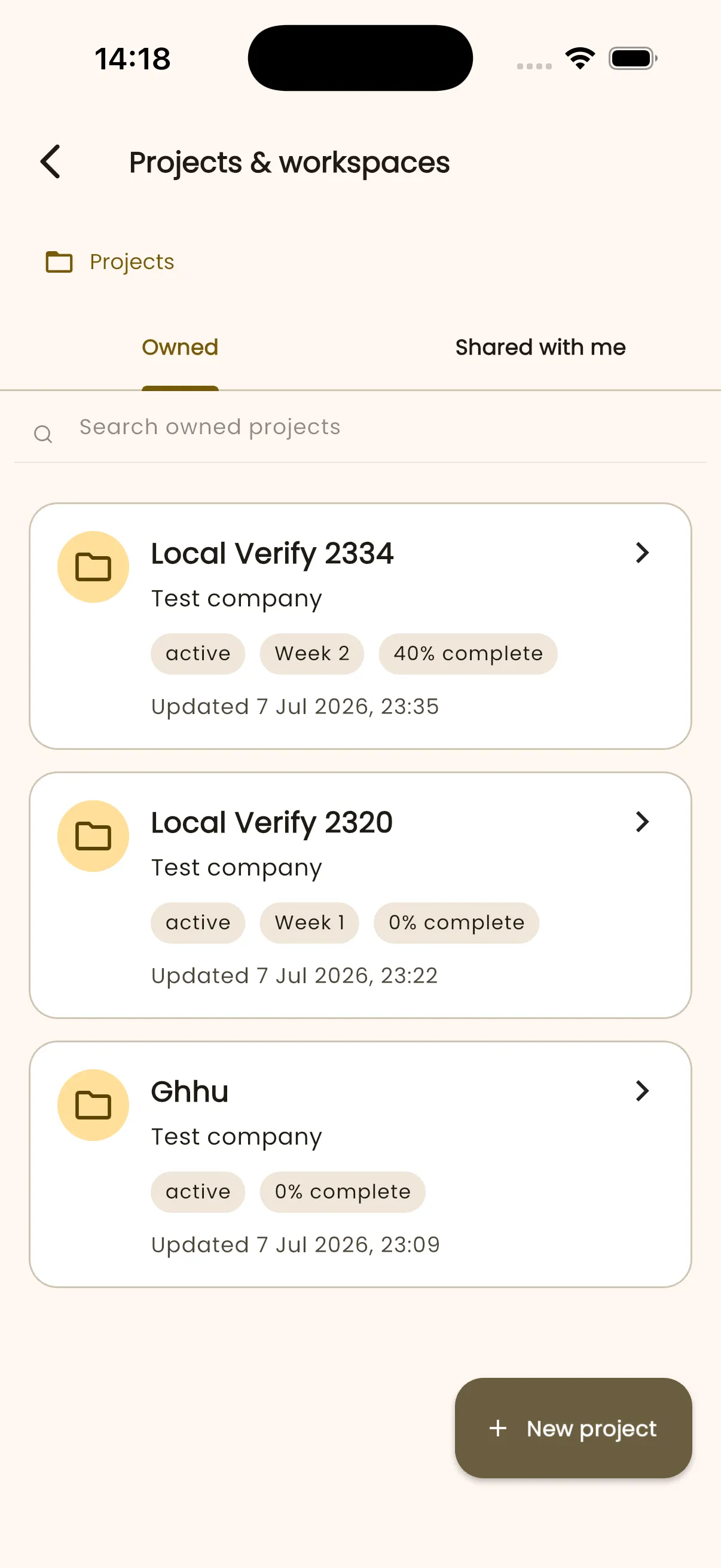
- Projects and workspaces lists the projects available to you.
- Each card shows the project name, workspace relationship, status, progress, and last update.
- Open Harbour View Annex. Its Feed brings recent project activity together.
- Overview shows project details, programme status, dates, site conditions, and notes.
- Tasks opens programme activities, the timeline, and programme import.
- Reports provides reports, work logs, reminders, and other project records.
- Files keeps project evidence organised by type.
- Team shows active members and pending invitations, with an Invite contact action.
- Return to Overview when needed, or use the back arrow to choose another project.
Before you begin
Section titled “Before you begin”Have an InBuildr account, or open the public workspace to explore the demo before you sign in.
Permission note
Section titled “Permission note”Anyone can open the public workspace. Project-specific actions appear only after you sign in and have access to a project.
- Open InBuildr from the journey link below.
- Sign in, or choose the demo from the welcome flow to explore without changing a real project.
- Select a project from Projects & workspaces.
- Use the project tabs to open Feed, Overview, Tasks, Reports, Files, and Team.
Expected result
Section titled “Expected result”You can see the available project surfaces and choose the task you need next.
Troubleshooting
Section titled “Troubleshooting”If a project is not listed, confirm that you signed in with the account that was invited to it. If you are in the demo, its changes stay local to that demo session.