Add a programme activity
Last updated: July 17, 2026
Create and assign a programme activity
Use the video controls or chapter buttons to follow this tutorial.
Read transcript
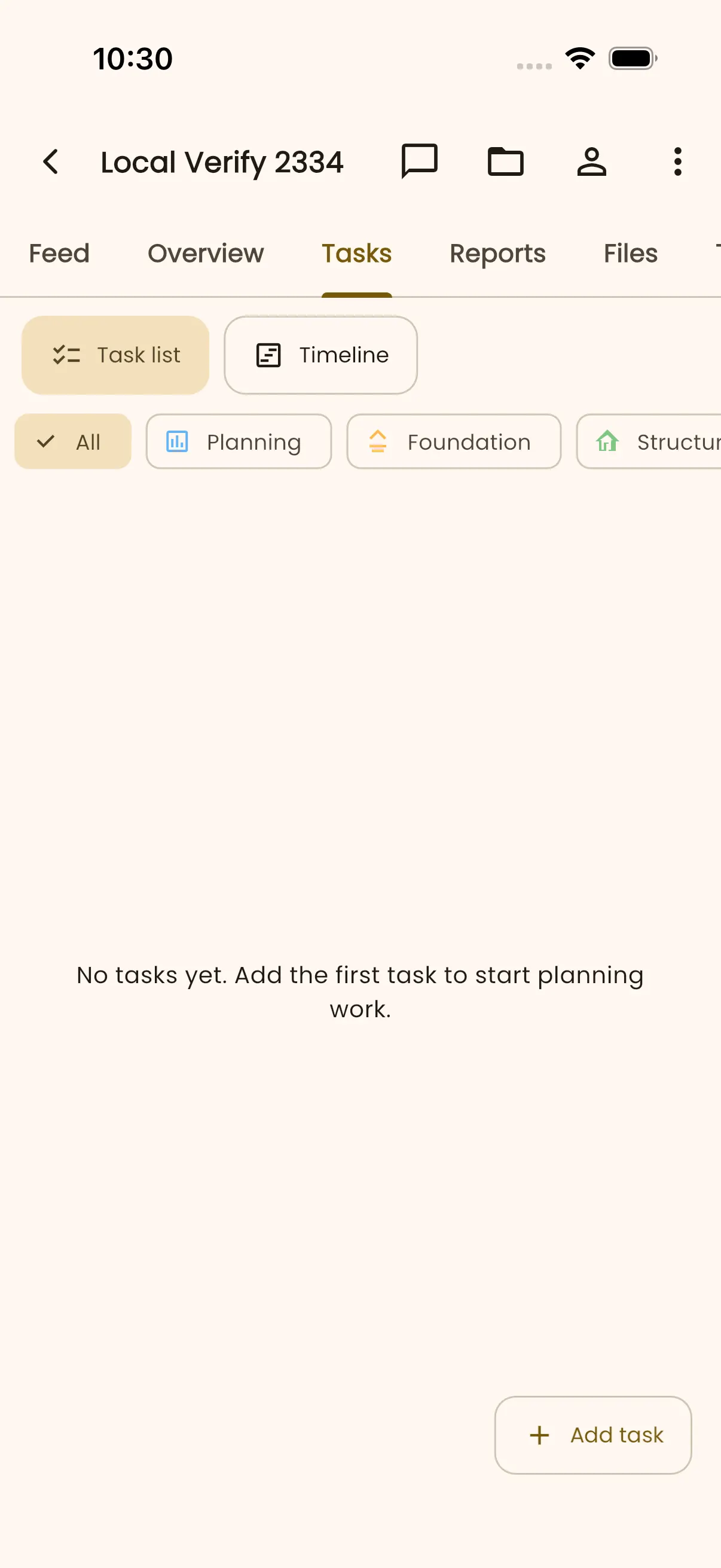
- Open Harbour View Annex and choose Tasks.
- Select Add activity to create a programme work package.
- Enter North block masonry, choose Structure as the trade, and save the activity.
- The new activity appears in the programme activity list.
- Open the activity, select Edit, and scroll to Assignee.
- Open Assign Task and confirm the seeded project owner is selected.
- Select Done, then Save to apply the assignment.
- InBuildr returns to the saved activity details and confirms the update.
Before you begin
Section titled “Before you begin”Sign in, open a project, and prepare the activity name. Start date, finish date, and trade are optional when you create it.
Permission note
Section titled “Permission note”You need permission to create tasks in the project to add an activity.
- Open the project Tasks tab or the Overview programme action.
- Select Add activity.
- Enter the activity name and, if known, choose start and finish dates and a trade.
- Select Save or Save & add another.
Expected result
Section titled “Expected result”The activity is added to the programme. Its progress contributes to the project progress roll-up.
Troubleshooting
Section titled “Troubleshooting”If the add action is unavailable, check that you can create tasks in the project. If you need to import activities, use the project’s import option only when your role exposes it; the supported import guidance is for CSV, not Excel files.